VendorReach · getvendorreach.com
How to Use VendorReach (Service Companies)
Field guide for home-service shops
Published ·Updated
Before you start
You need:
- A company name and the metros you service
- Your primary trade (or trades)
- License and insurance details for the vendor packet (have them ready even if you paste them later)
- An inbox where replies should land (Reply-To)
Use the service company signup—not the Property Managers door.
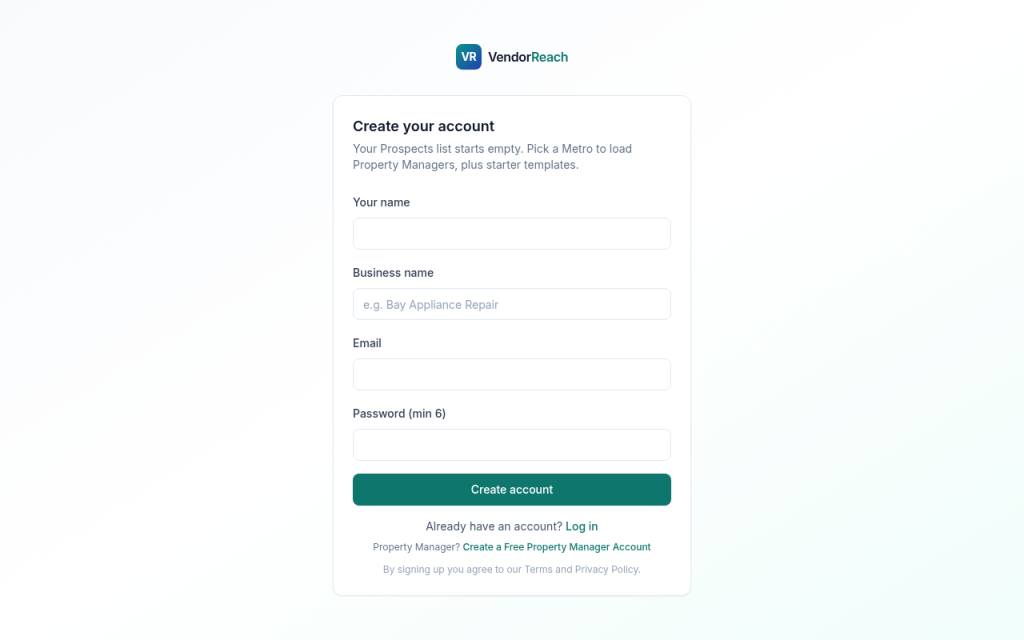
1. Sign up
- Open the service company signup
- Create a service company account
- Confirm your email if prompted
- Sign in
2. Settings
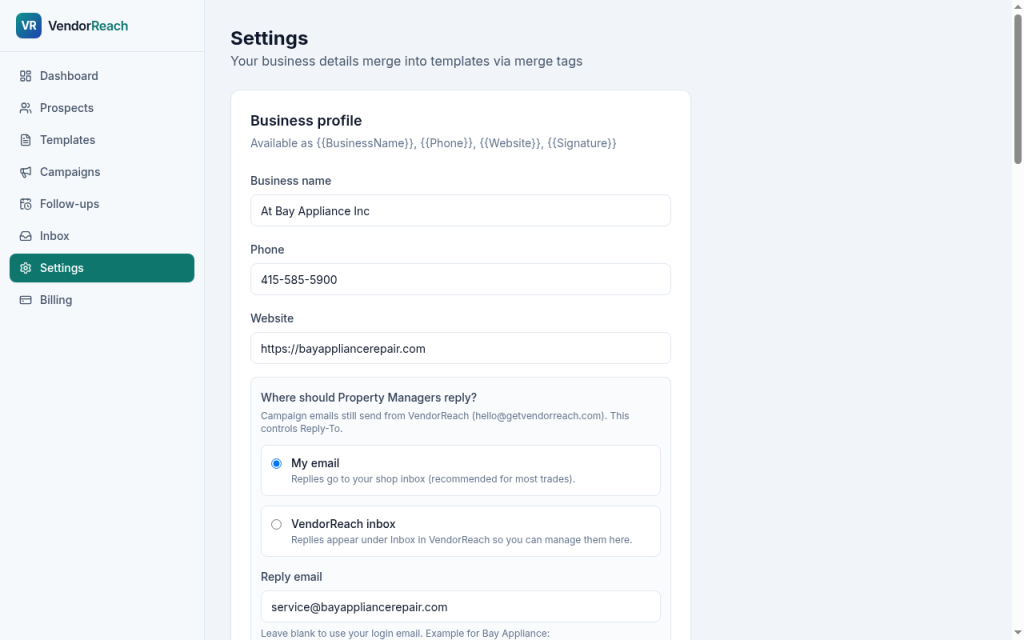
Complete Settings before you load a large list. Incomplete settings cause wrong templates, wrong metro Prospects, and replies going to the wrong place.
Set at least:
| Field | What to enter |
|---|---|
| Company name | Legal or DBA name Property Managers will recognize |
| Metro / service area | Markets you can actually cover |
| Trade | Primary trade for templates and listing |
| Reply preference / Reply-To | Inbox that receives campaign replies |
Optional but useful: phone, website, hours, service area notes for the vendor packet.
Save when finished.
3. Load Prospects from the directory
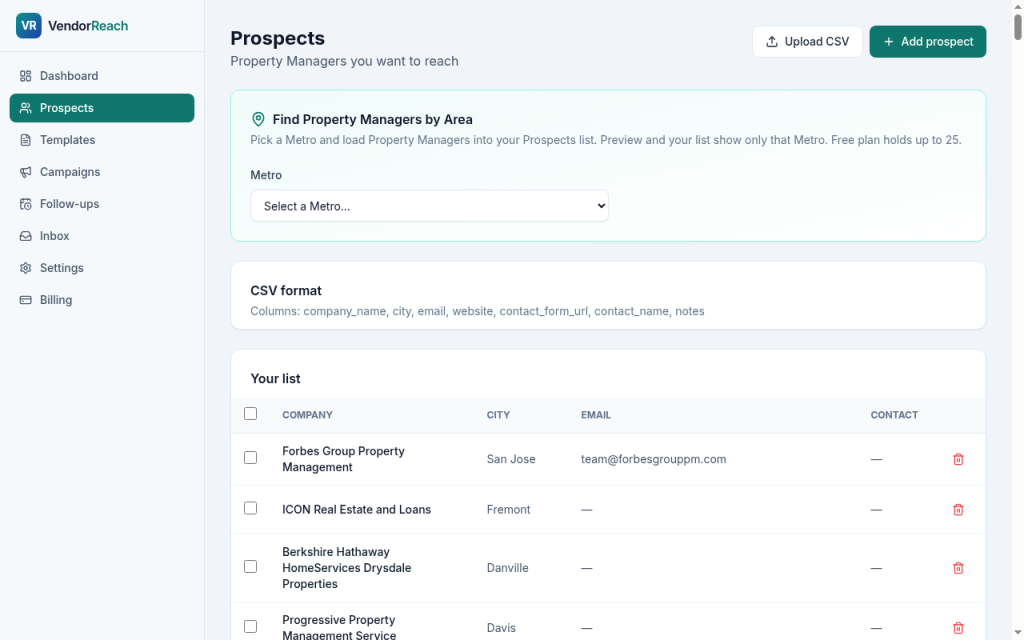
Prospects are Property Managers in your selected metro.
- Open Prospects (or the directory / metro picker in the product)
- Choose your metro
- Load the local list
- Review rows: company, city, website, email or contact form when present
Notes:
- This is a starting list, not a guarantee of every Property Manager in the market
- Some rows have email; others have a website form or phone only
- CSV upload is secondary if you already maintain your own list
Skip rows outside your service area. Do not invent missing emails.
4. Templates and vendor packet
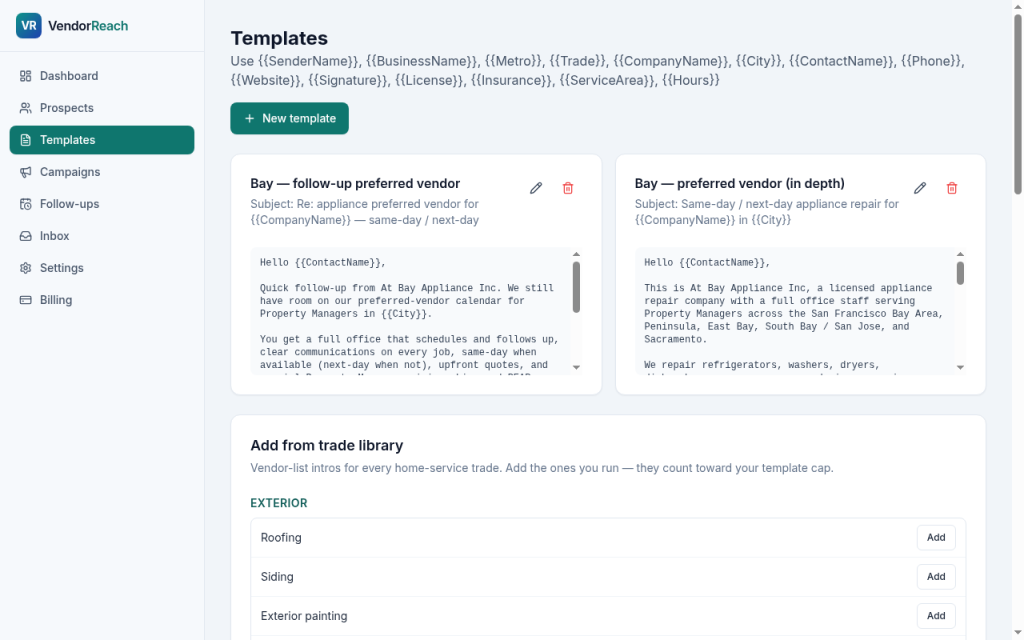
Open Templates.
- Select a template for your trade (appliance repair, HVAC, plumbing, roofing, landscaping, cleaning, and others)
- Personalize the intro: who you are, metros you cover, response expectations
- Fill the vendor packet fields: license, insurance / COI note, service area, hours, W-9 reminder
- Save
Keep the first message short. Put paperwork in the packet block so Property Managers can copy what they need.
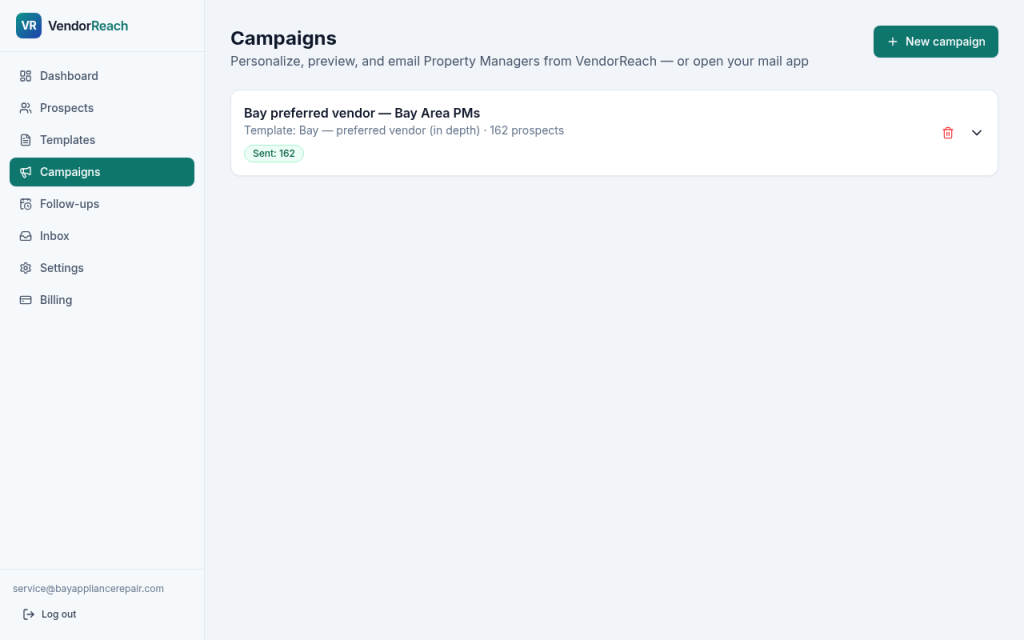
5. Create a Campaign
- Create a new Campaign
- Attach your Template
- Add Prospects from your metro list (or a filtered subset)
- Confirm send path: email where available; form or call where email is missing
- Confirm From / Reply-To: campaigns may send From hello@getvendorreach.com with your shop as Reply-To
Work the list in batches you can actually follow up. Mark each row Sent, Skipped, or Failed.
6. Send and follow up
First touch
- Email: send when an address exists
- Contact form: open the prospect’s form, paste your message, submit per their site rules
- Phone: use your talking points; note the outcome on the row
Follow-ups
Plan touches at day 7 and day 21 for prospects that did not reply. Use the campaign follow-up tools so the second message actually goes out.
Do not stack five messages in one week. Two or three spaced touches are enough for a first approach.
7. Handle replies
Replies go to your Reply-To inbox, not to a shared VendorReach mailbox you manage day to day.
When someone replies:
- Answer from your company email
- Send the vendor packet if they ask for license or insurance
- Confirm metros, trades, and response times
- Update the Campaign row so you do not follow up again by mistake
If they decline, mark Skipped or note “not a fit” and move on.
8. Featured listing (optional)
Property Managers can browse VendorReach for free and find local shops. A basic listing helps you appear in that portal. Featured by metro and trade is paid advertising: Property Managers see shops that want preferred-list work.
Featured is labeled. There are no scraped star ratings.
Use Featured when you want inbound from Property Managers browsing your metro and trade—not as a substitute for outbound Campaigns.
Confirm Featured availability and pricing on the site when you are ready.
Troubleshooting
Quota or send limits
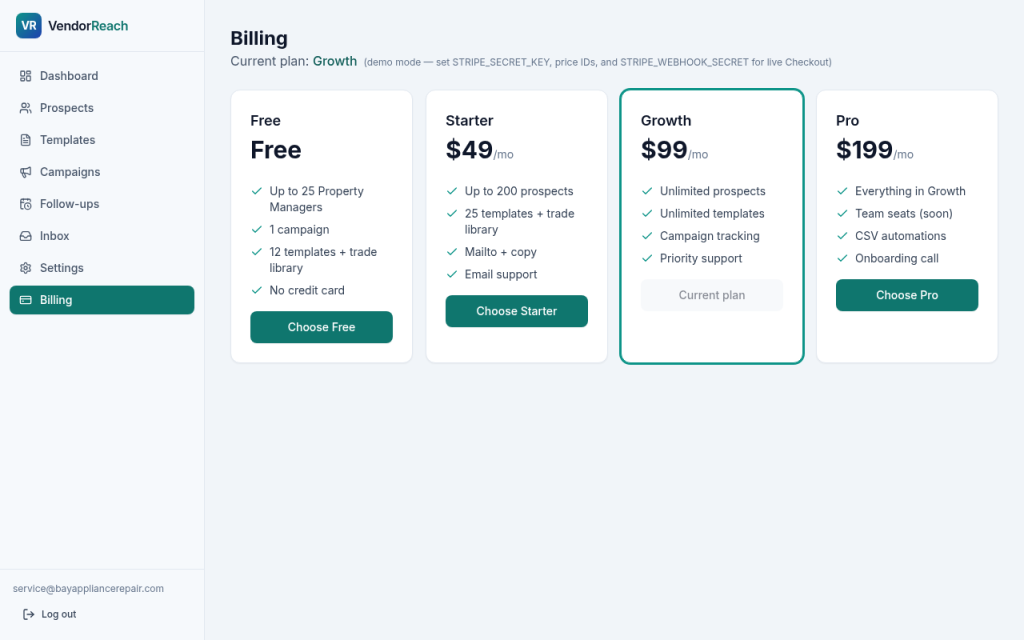
If sends are blocked or limited, check your plan (Free / Starter / Growth / Pro) and wait for the limit to reset, or upgrade when checkout is available for your account. Compare plans on the pricing page.
Reply-To wrong or missing
Open Settings and set Reply-To to an inbox you monitor. Save, then send a test to yourself before a large batch.
Prospect has no email
Use Open contact form or Call. If neither exists, Skip. Do not guess an address.
Wrong metro Prospects
Change metro in Settings (or the metro picker), reload Prospects, and remove out-of-area rows from the Campaign.
Form submissions fail on their site
Some Property Manager sites use CAPTCHAs or broken forms. Switch to phone or skip. Record Failed with a short note.
Replies go to spam on your side
Ask recipients to reply to your company domain when possible. Whitelist hello@getvendorreach.com if your filter is aggressive. Keep Reply-To on your primary domain.
Template feels too long
Shorten the intro. Keep license / COI / service area in the packet section.
Suggested first week
| Day | Action |
|---|---|
| 1 | Sign up, finish Settings, fill vendor packet |
| 2 | Load one metro of Prospects; clean obvious mismatches |
| 3 | Send first batch (email / form / call as available) |
| 4–5 | Handle replies; fix Template based on what people ask |
| 7 | First follow-up on silent prospects |
| 21 | Second follow-up where still appropriate |